
ObituaryMonitorObituaryMonitor
  • Help center

    • Overview
    • Video tutorials
    • Contact support
  • Step-by-Step Tutorials

    • Tutorial: Your Dashboard Explained
    • Tutorial: Creating Your First Watch
    • Tutorial: Reviewing and Confirming Matches
    • Tutorial: Generating PDF Audit Reports
    • Tutorial: Setting Up Notifications
    • Tutorial: Case Management (Professional)
    • Tutorial: Bulk Import & Export (Professional)
    • Tutorial: Team Management (Professional)
    • Tutorial: Custom Branding (Professional)
  • Getting Started

    • What is ObituaryMonitor?
    • Setting Up Your Account
    • Choosing the Right Plan
  • Integrations

    • Integrations Overview
    • Connecting Your Clio Account
    • Importing Clio Matters as Watches
    • How Clio Sync Works
    • Clio Integration Troubleshooting
    • Connecting MyCase
    • Syncing Time Entries
    • Linking Cases to Matters
  • Managing Watches

    • Adding a New Watch
    • Editing a Watch
    • Watch Statuses Explained
    • Why Location Matters
  • Understanding Matches

    • How Matching Works
    • Confidence Scores Explained
    • Confirming vs Dismissing Matches
  • Notifications & Alerts

    • Notification Channels
    • Troubleshooting Email Delivery
  • Account & Billing

    • Upgrading Your Plan
    • Updating Payment Method
    • Canceling Your Subscription
  • Privacy & Security

    • Watch List Privacy
    • Data Protection
  • Cases & Matters

    • Case Management Overview
    • Creating a Case
    • Case Reports & Export
  • Professional Features

    • Activity Logs
    • Bulk Import & Export
    • Team Management
    • Custom Branding
  • Getting Help

    • Support Ticket Types
    • Response Times
ObituaryMonitorObituaryMonitor
  • Help center

    • Overview
    • Video tutorials
    • Contact support
  • Step-by-Step Tutorials

    • Tutorial: Your Dashboard Explained
    • Tutorial: Creating Your First Watch
    • Tutorial: Reviewing and Confirming Matches
    • Tutorial: Generating PDF Audit Reports
    • Tutorial: Setting Up Notifications
    • Tutorial: Case Management (Professional)
    • Tutorial: Bulk Import & Export (Professional)
    • Tutorial: Team Management (Professional)
    • Tutorial: Custom Branding (Professional)
  • Getting Started

    • What is ObituaryMonitor?
    • Setting Up Your Account
    • Choosing the Right Plan
  • Integrations

    • Integrations Overview
    • Connecting Your Clio Account
    • Importing Clio Matters as Watches
    • How Clio Sync Works
    • Clio Integration Troubleshooting
    • Connecting MyCase
    • Syncing Time Entries
    • Linking Cases to Matters
  • Managing Watches

    • Adding a New Watch
    • Editing a Watch
    • Watch Statuses Explained
    • Why Location Matters
  • Understanding Matches

    • How Matching Works
    • Confidence Scores Explained
    • Confirming vs Dismissing Matches
  • Notifications & Alerts

    • Notification Channels
    • Troubleshooting Email Delivery
    • Setting Up SMS Alerts
  • Account & Billing

    • Upgrading Your Plan
    • Updating Payment Method
    • Canceling Your Subscription
  • Privacy & Security

    • Watch List Privacy
    • Data Protection
  • Cases & Matters

    • Case Management Overview
    • Creating a Case
    • Case Reports & Export
  • Professional Features

    • Activity Logs
    • Bulk Import & Export
    • Team Management
    • Custom Branding
  • Getting Help

    • Support Ticket Types
    • Response Times
  1. Knowledge base
  2. Step-by-Step Tutorials
  3. Tutorial: Case Management (Professional)

Step-by-Step Tutorials

Tutorial: Case Management (Professional)

Organize monitoring by legal matter with full case workflow

Last updated February 25, 2026

Case Management: Complete Professional Tutorial

Cases help you organize watches and matches by legal matter.


What You'll Learn

  • Creating and configuring cases
  • Adding watches to cases
  • Tracking case activity
  • Generating case reports
  • Managing case lifecycle

Why Use Cases?

Cases overview page
Cases overview page
Without CasesWith Cases
All watches mixed togetherOrganized by matter
Manual trackingAutomatic activity logs
Basic reportsCase-specific reports
Individual exportsBulk case exports

Creating a New Case

Step 1: Navigate to Cases

Cases in sidebar
Cases in sidebar
  1. Click "Cases" in the sidebar
  2. You'll see your cases list (or empty state)

Step 2: Click New Case

New Case button
New Case button
  1. Click "+ New Case" button
  2. Or click "Create Your First Case" if empty

Step 3: Choose a Template

Select from templates:

  • Probate Administration - Estate proceedings
  • Trust Administration - Trust matters
  • Collections - Debt recovery
  • Skip Trace - Locate missing persons
  • Blank Case - Start from scratch

Step 4: Enter Case Details

Case creation form
Case creation form

Required Fields:

  • Case Name: Estate of John Smith
  • Client Name: Smith Family Trust

Recommended Fields:

  • Matter Number: 2026-PRB-042
  • Jurisdiction: Hamilton County, Ohio
  • Filing Deadline: March 15, 2026

Step 5: Create the Case

  1. Review all information
  2. Click "Create Case"
  3. You're taken to the case detail page

Adding Watches to a Case

Method 1: From Case Page

Add Watch button in case
  1. Open the case
  2. Click "Add Watch" in the case
  3. Fill out watch details
  4. Watch is automatically linked

Method 2: Link Existing Watch
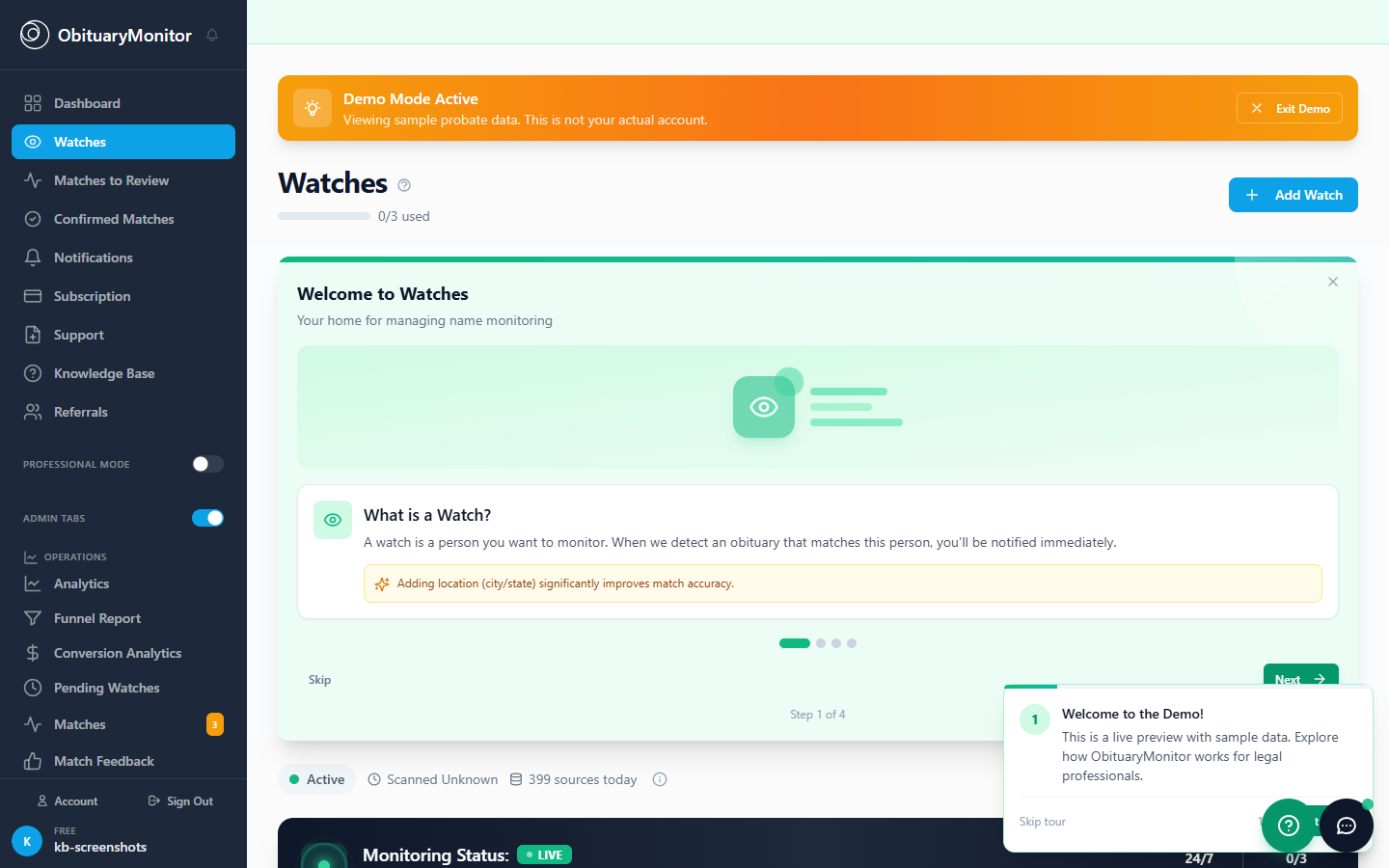
Link existing watch option
  1. Go to Watches page
  2. Find the watch to link
  3. Click the watch card
  4. Click "Link to Case"
  5. Select the case

Case Detail Page

Full case detail page

Header Section

  • Status badge (Monitoring/Matched/Closed)
  • Watch count
  • Match count
  • Days active

Watches Tab

Watches tab in case
Watches tab in case

Lists all watches linked to this case with status and quick actions.

Activity Tab

Complete activity timeline:

  • Watch created events
  • Match found events
  • Match confirmed/dismissed
  • Report generated

Case Statuses Explained

Status badges
Status badges
StatusBadgeMeaning
MonitoringBlueActively scanning
Match IdentifiedAmberMatch needs review
Log GeneratedPurpleAudit report created
Court FiledGreenDocumentation submitted
ClosedGrayCase complete

Generating Case Reports

Full Case Report

  1. Open the case
  2. Click "Generate Report"
  3. Choose "Full Case Report"
  4. Select date range
  5. Download PDF

Negative Search Certificate

When no matches are found, generate a certificate proving diligent search.


Filing Deadline Reminders

Deadline reminder settings

You'll receive reminders:

  • 30 days before deadline
  • 14 days before deadline
  • 7 days before deadline
  • 1 day before deadline

Best Practices

  1. Use consistent naming - Makes searching easier
  2. Add matter numbers - Cross-reference with your system
  3. Set deadlines - Get automatic reminders
  4. Generate reports promptly - While data is fresh
  5. Link all related watches - Keep everything organized

Next Steps

  • Tutorial: Bulk Import for Cases
  • Tutorial: Team Collaboration
  • Integration with Practice Management

Was this article helpful?

Previous
Tutorial: Setting Up Notifications
Next
Tutorial: Bulk Import & Export (Professional)

Related articles

Tutorial: Your Dashboard ExplainedTutorial: Creating Your First WatchTutorial: Reviewing and Confirming Matches

Still need help?

Can't find what you're looking for? Contact our support team.

ObituaryMonitor

Obituaries

Monitored 24/7

Save watches for free
No credit card required
Cancel anytime
Get startedBook a demo
ObituaryMonitor

Obituaries

Monitored 24/7

Save watches for free
No credit card required
Cancel anytime
Get startedBook a demo

Product

  • For Families
  • Professional Plans
  • How It Works
  • Death Verification API
  • Daily County Intelligence
  • How Matching Works
  • Compare Plans
  • All Pricing

By Industry

  • Probate Attorneys
  • Estate Attorneys
  • Insurance Companies
  • Debt Collectors
  • Private Investigators
  • Skip Tracers
  • Genealogists
  • Family Research
  • Real Estate Investors

Company

  • About Us
  • Press & Media
  • For Researchers
  • Obituary Data
  • Contact Sales
  • Security
  • Compliance

Resources

  • Help Center
  • Video Tutorials
  • FAQ
  • Verify API docs
  • Our Methodology
  • Advanced Name Matching
  • All Guides
  • Funeral Home Directory
  • vs. Google Alerts for Law Firms
  • Legal Disclaimer

Newsletter

Obituary data insights, professional tips, and product updates — monthly to your inbox.

Popular Jurisdictions

Cook County, ILPalm Beach, FLLos Angeles, CAHarris County, TXMaricopa, AZView All →

Coverage Directory

Providing probate due diligence logs and death notice alerts in all 50 states and the District of Columbia.

Alabama•Alaska•Arizona•Arkansas•California•Colorado•Connecticut•Delaware•Florida•Georgia•Hawaii•Idaho•Illinois•Indiana•Iowa•Kansas•Kentucky•Louisiana•Maine•Maryland•Massachusetts•Michigan•Minnesota•Mississippi•Missouri•Montana•Nebraska•Nevada•New Hampshire•New Jersey•New Mexico•New York•North Carolina•North Dakota•Ohio•Oklahoma•Oregon•Pennsylvania•Rhode Island•South Carolina•South Dakota•Tennessee•Texas•Utah•Vermont•Virginia•Washington•West Virginia•Wisconsin•Wyoming• District of Columbia
ObituaryMonitor© 2026 Northgate Leland, LLC d/b/a ObituaryMonitor. All rights reserved.
Privacy PolicyTerms of ServiceLegal DisclaimerContact